How to reconcile PayPal and Shopify
Updated November 3, 2026
If your store takes PayPal as well as Shopify Payments, PayPal money arrives on its own schedule and the two reports do not line up. This guide shows how to match them with two CSV exports and a spreadsheet, and when to stop matching by hand.
Why PayPal and Shopify never line up on their own
- Separate settlement. PayPal pays you from its own balance on its own timing. Shopify Payments pays out on the payout schedule.
- Separate fees. PayPal takes its own fee per transaction, and it is not the same as Shopify's.
- Often no shared ID. A common reference used to tie an order to the PayPal transaction is missing from many exports. Matching then has to rely on amount and date.
None of this is an error. It means the match is yours to build.
Get the right export from PayPal
- In PayPal, open Activity and find the report or statement download area. Menu names change, so look for an activity report.
- Choose a custom date range that covers the month you are checking, plus a few days either side.
- Choose CSV and include only balance-affecting transactions, so memo rows do not pad the file.
- Download it. Check that the file has columns for date, name, type, gross, fee, net and currency.
Get the Shopify side
Pick one of two sources:
- Orders export, filtered to PayPal. In Orders, filter by payment method PayPal for the same date range and export. You get one row per order with its total and date.
- The payouts export. Useful when you also want the Shopify Payments rows next to the PayPal ones. See the Why is my Shopify payout less than my sales? guide.
Match by amount and date within a window
- Put the PayPal rows on one sheet and the Shopify orders on another.
- On the PayPal sheet, keep only payments received. Set refunds and fees aside for now.
- For each PayPal payment, look for a Shopify order with the same total, placed within two or three days before it. A lookup on amount, plus a check on the date gap, does most of the work.
- Write the matching order number next to each PayPal row.
- Where two orders have the same amount in the same window, use the order time as a tiebreaker, and leave the pair on the open-items list if it is still unclear.
- Mark every PayPal row as matched or unmatched.
The leftovers
Whatever is left needs a decision:
- PayPal fees. They belong to the sale they came from. Ask your accountant which expense line they go on.
- Refunds. Match each refund to the original order, even when it is in a later month.
- Currency conversion. A payment in another currency can arrive as two rows. Keep both and note the pair.
- Rows you cannot match. Leave them on an "open items" list with the date and amount. Do not force a match.
A monthly routine in 20 minutes
- Export PayPal Activity for last month (3 minutes).
- Export Shopify orders for PayPal (2 minutes).
- Paste both into the template sheet and run the lookup (5 minutes).
- Review the unmatched list and write a note against each row (7 minutes).
- Save the sheet with the month in the file name (1 minute).
- Carry unresolved rows into next month's sheet (2 minutes).
You can test the method on the sample file at /samples/paypal-activity.csv. It is made-up data.
When to stop matching by hand
Hand matching is fine at a few dozen PayPal orders a month. When the unmatched list keeps growing, or you need the same thing for several stores, the time cost is higher than the tool cost. That is the point to let software do the first pass and keep your time for the leftovers.
Skip the manual sum
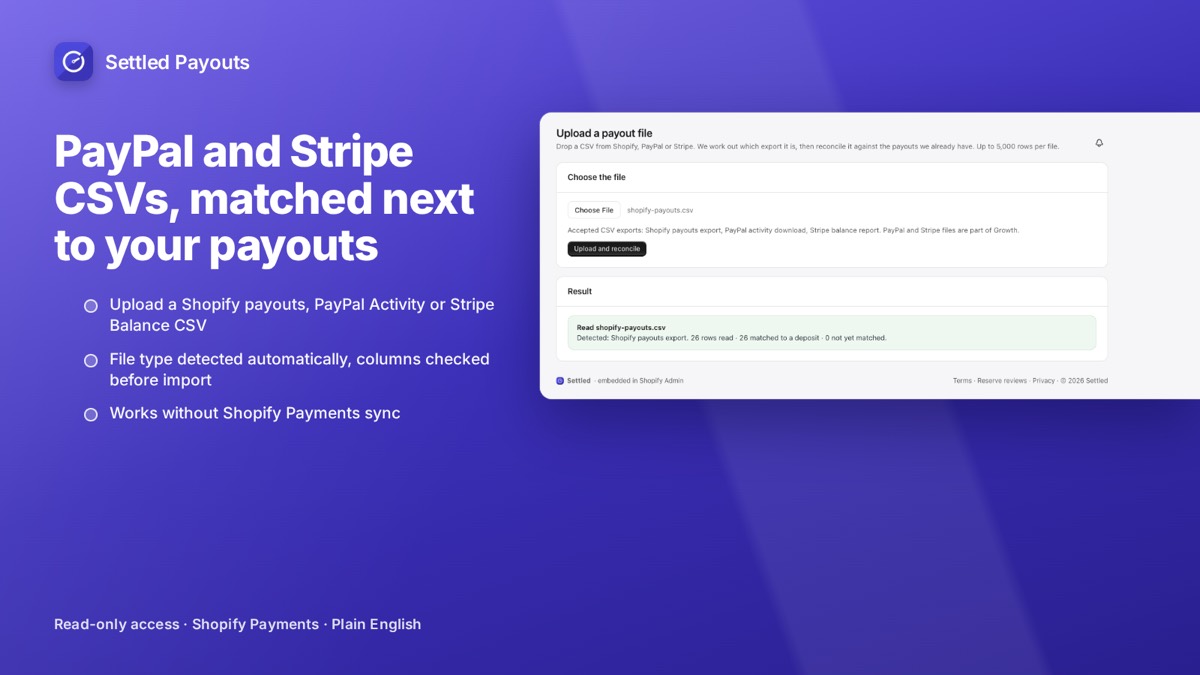
Settled Payouts takes the same PayPal Activity CSV and matches it next to your Shopify payouts. Rows that are not tied to a deposit wait in a Review queue instead of being forced into a match.
PayPal and Stripe CSV reconciliation is on Growth ($39/month) and Scale. Settled never connects to PayPal directly; you upload the file. 14-day free trial, no card required. Plans: Starter $19, Growth $39, Scale $79 per month.
Search Settled Payouts on the App Store